
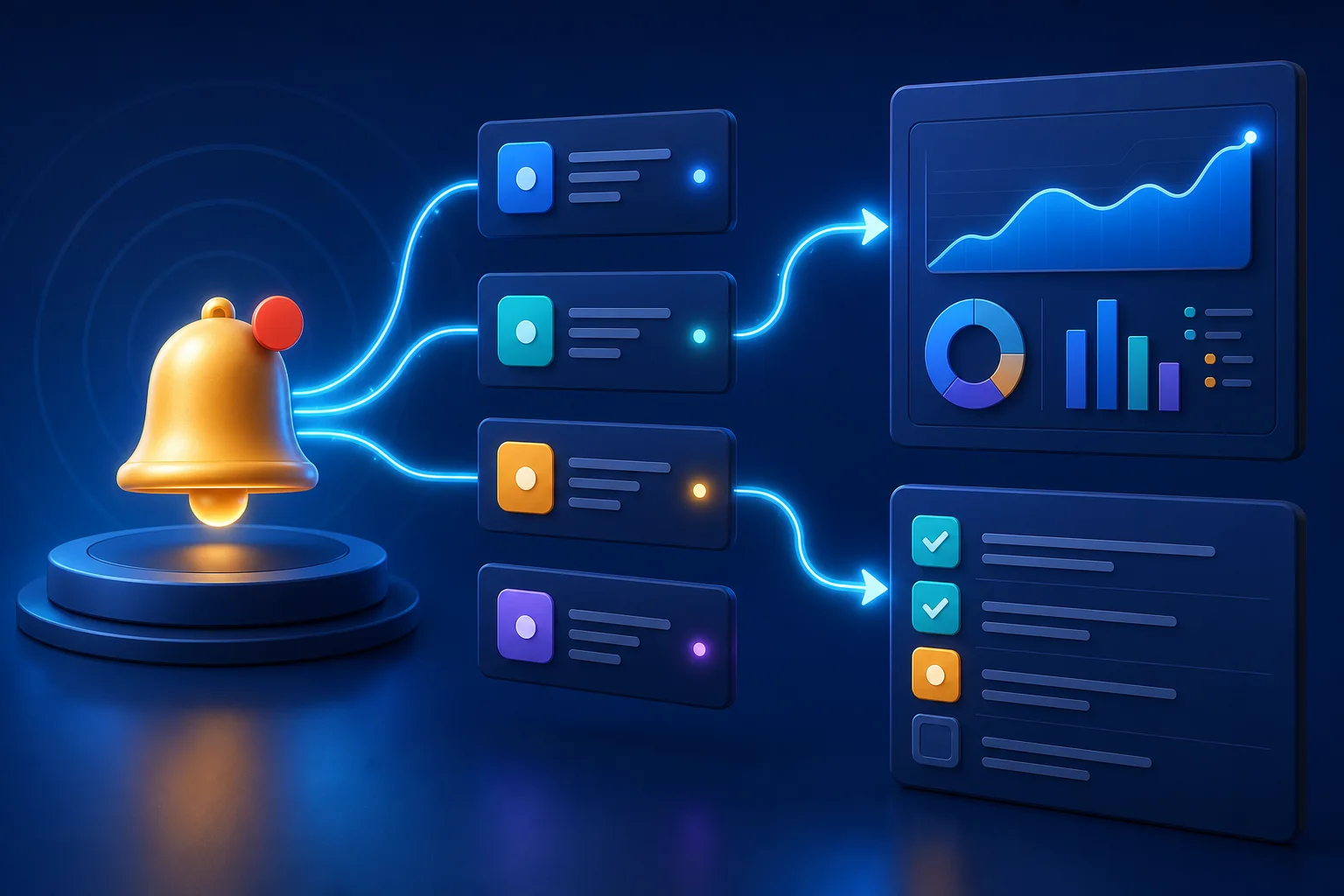
Daily Report Notifications That Open the Right Next Step
Automatic daily reporting is supposed to remove a repetitive end-of-day task. If a notification only says “complete” or “failed,” the user must still open the app, find the relevant page, and work out what happened. The automation has only completed half of the job.
XiaoHei Daily Assistant recently improved system-notification routing and report failure messages. Notifications now aim to guide the user to the next useful action instead of merely broadcasting a status.
Successful reports should be easy to find
When an automatic report is generated and saved, opening its system notification can return the user to the report area where the result is available. For browser-based AI generation, completion should be tied to successful extraction and local saving of the final answer, not merely to pressing a Send button on a web page.
This distinction prevents a confusing state in which the browser produced text but the desktop report history remained empty. After opening a successful result, users should still verify names, numbers, factual claims, and next-day plans before sharing it.
A failure message must answer two questions
A useful failure notification explains why the report did not complete and where the user can fix it. Common causes include:
- no usable timeline records in the selected date range;
- an expired browser-AI login;
- an invalid model or endpoint configuration;
- insufficient balance or an unavailable feature configuration;
- failure while compressing an oversized context;
- the app closing before a background workflow finished.
Repeatedly clicking Generate is rarely the best first response. Identify the category, correct the condition, and then run the report again.
Browser-account generation needs accurate state handling
DeepSeek, Doubao, Yuanbao, and ChatGPT browser workflows depend on login state, page behavior, and reliable detection of the final response. If the account requires login, the hidden browser window may need to become visible so the user can take action. When generation succeeds normally, the workflow should save the report, notify the user, and close the window.
Recent changes align success and failure messages across browser providers, making the same class of problem easier to recognize no matter which service generated the report.
What happens when native system notifications are disabled?
Turning off desktop pop-ups does not have to mean losing report status. XiaoHei can retain reminders in its in-app notification center. Native notifications are useful when immediate attention matters; the in-app center is better for users who prefer fewer interruptions.
On macOS, use the permission check to confirm notification access. On Windows, verify that operating-system settings allow notifications from the application. In every case, report history remains the authoritative place to confirm that a report was actually saved.
A reliable automatic-report setup checklist
For the first few days after enabling automation:
- Confirm that the timeline contains records before the scheduled time.
- Verify the selected template, model, or browser account.
- Open the notification and check its destination.
- Confirm that the result exists in report history.
- If it fails, follow the specific message instead of only changing the schedule.
Good automation makes successful output easy to reach and failed output easy to repair. Connecting notifications to the correct destination closes the gap between background execution and user action.